eBookSort app icon

Find any book in your library — instantly

eBookSort imports your Kindle, Audible, and Apple Books libraries and sorts everything by genre — automatically. Browse, search, and rediscover books you forgot you owned.

Just $0.99 — no subscription, no account

Download on the App Store
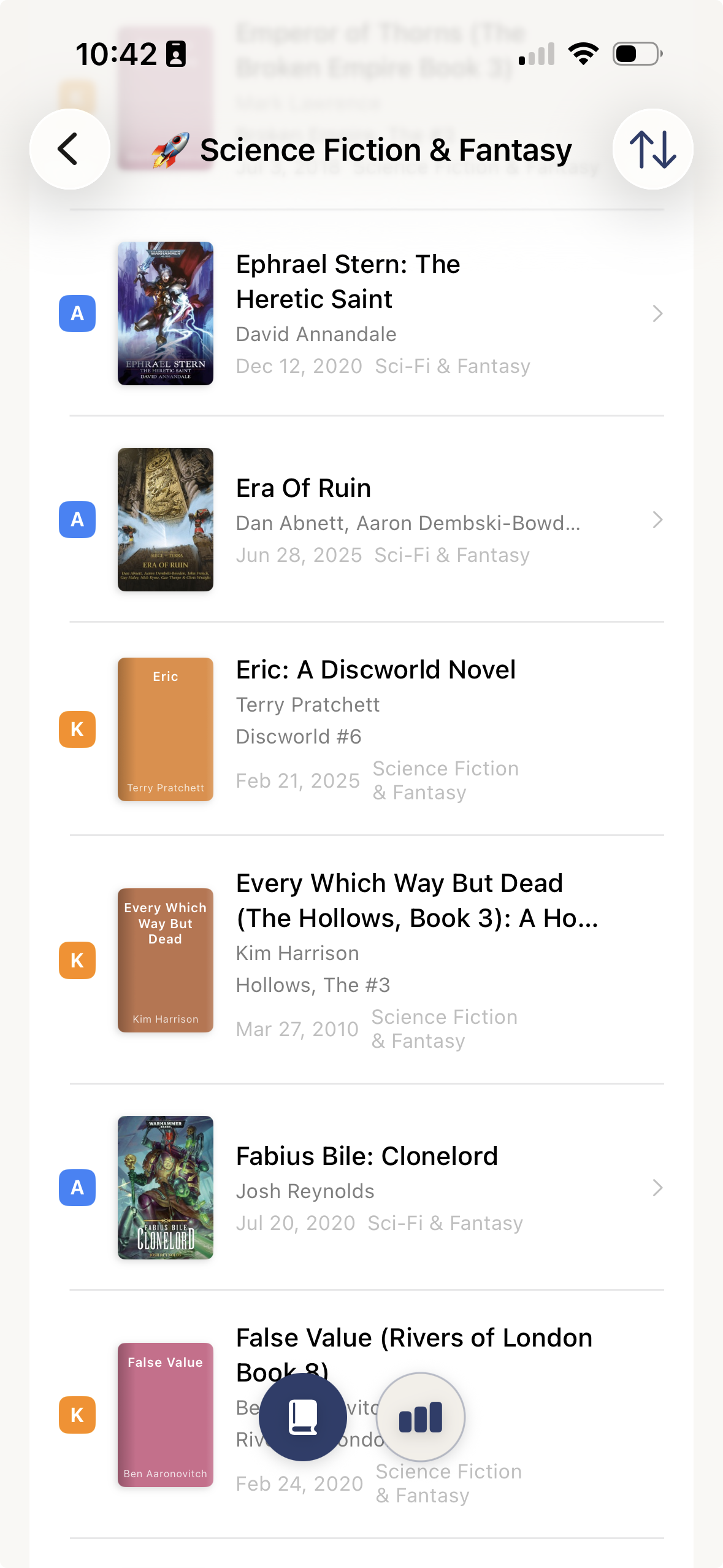
eBookSort showing Science Fiction & Fantasy with Kindle and Apple Books mixed together

Your eBook Library Is a Mess

Kindle shows you a flat list of everything you've ever bought. Apple Books isn't much better. No genres, no categories, no easy way to browse. Want to find that sci-fi novel you bought two years ago? Good luck scrolling.

eBookSort fixes this. It reads your Kindle and Apple Books data and automatically groups everything by genre. Import your Audible library too for detailed listening stats. View each library on its own or browse them as one combined collection. Setup takes about five minutes, and everything runs on your iPhone — your data never leaves your device.

What It Does

📚

Auto-Categorization

Groups your books into genres — sci-fi, mystery, history, romance, and more — using metadata from Amazon and Apple Books.

📖

Series Detection

Kindle only. Identifies book series and reading order so you can pick up where you left off or find the next book in sequence.

📊

Reading & Listening Stats

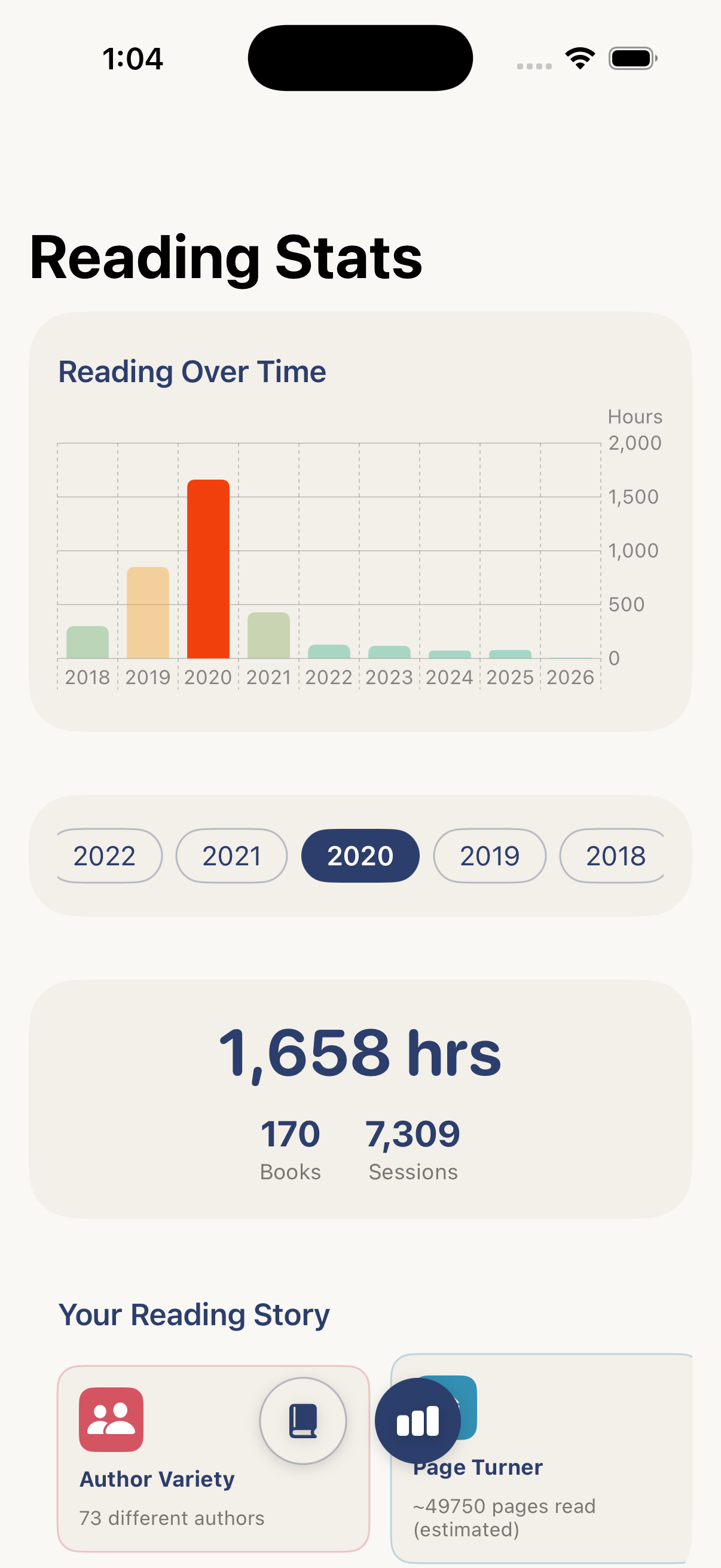
Kindle & Audible. Year-by-year charts, a reading heatmap, fun facts, and achievements. Audible adds listening hours, favorite narrators, narration speed, and completion rates.

Works On-Device

Your book data is processed and stored entirely on your iPhone. Apple Books include cover art — Kindle books don't, as Amazon's doesn't provide it. Everything works offline.

🔒

Fully Private

Your book data never leaves your iPhone. No accounts, no tracking, no analytics. The only network call is fetching cover art from Apple.

🎯

Honest About Limits

Categorization depends on Amazon and Apple metadata, which isn't always perfect. Most books land in the right place; a few might not.

See It in Action

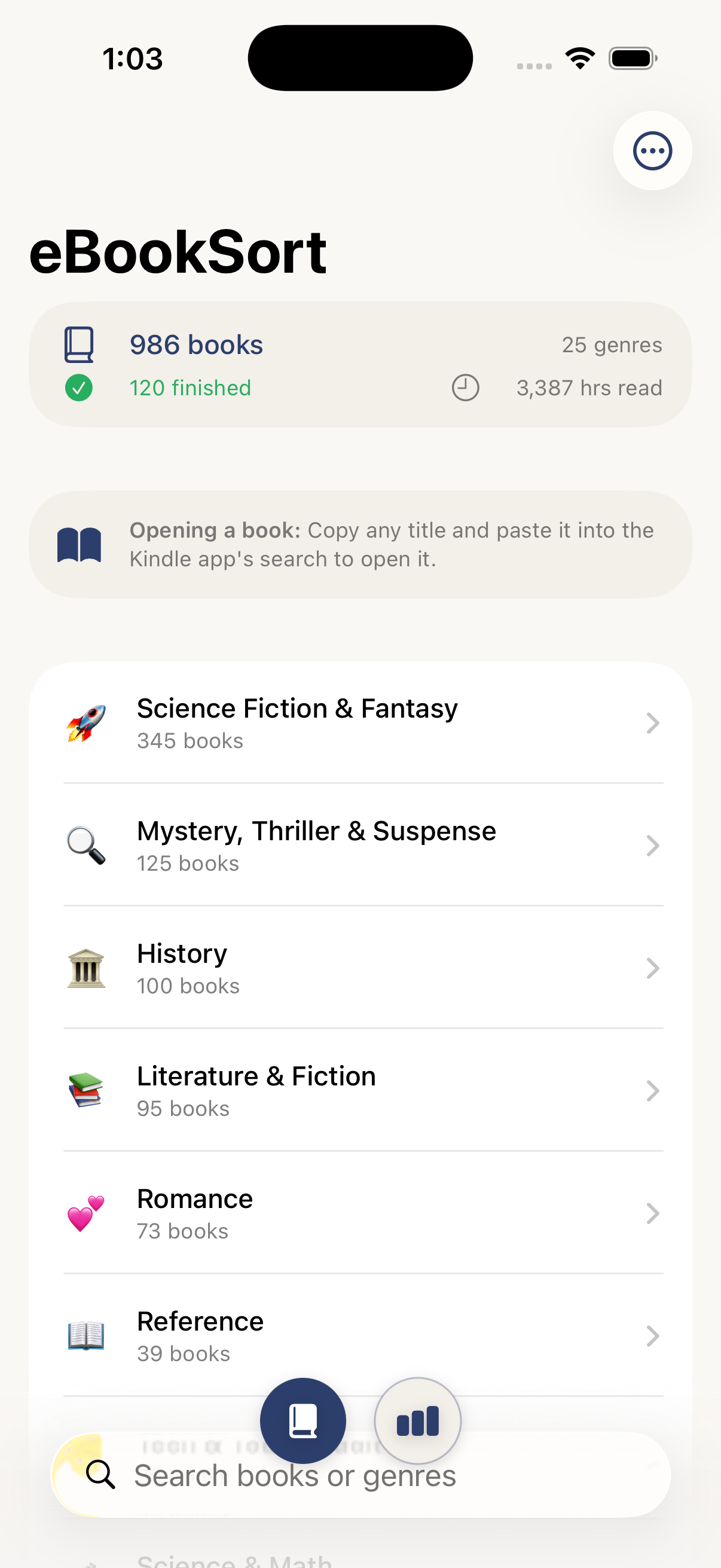
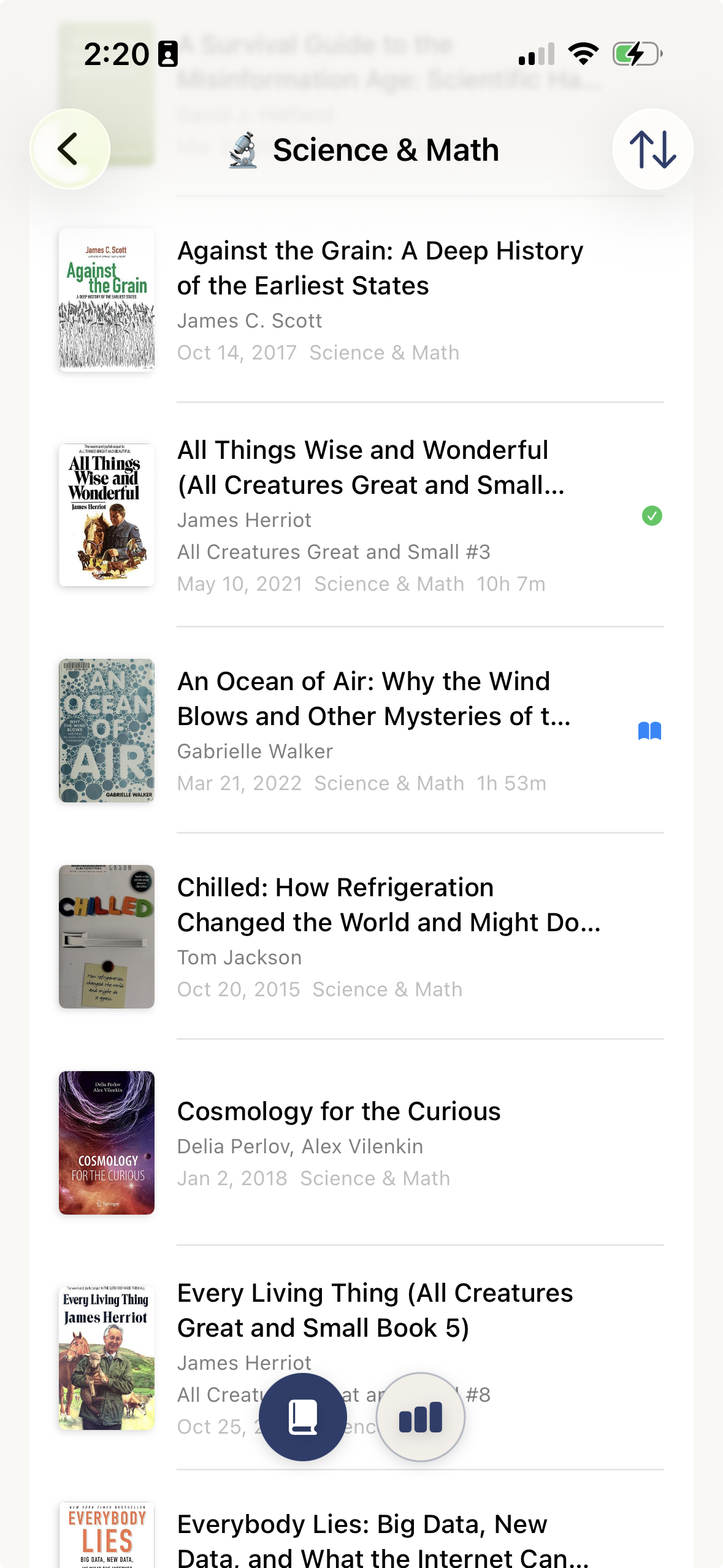
Browse your library by genre, dive into any category, and track your reading habits with colorful charts and insights.

Genre browsing view showing book categories Genre detail view showing books in a category Reading stats with charts and heatmap

Getting Started

Import your Kindle library, Audible audiobooks, Apple Books, or any combination. Tap a section below for step-by-step instructions.

📦 Kindle Users Import your Amazon Kindle library
1

Sign in to Amazon

Sign in to Amazon, then go to this page:
amazon.com/hz/privacy-central/data-requests/preview.html

2

Submit Your Request

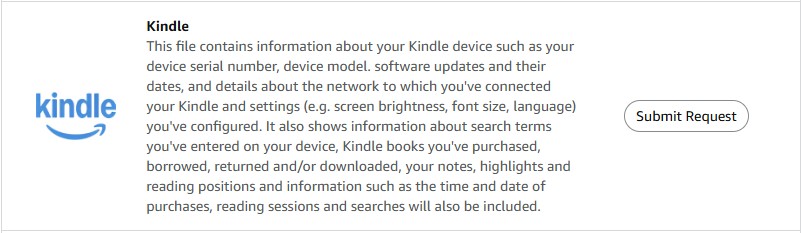
Scroll down to Kindle and click Submit Request.

Kindle Submit Request screenshot
3

Confirm via Email

Check your email and tap Confirm Data Request.

4

Wait for Your Data

In one or two days you will get an email with an attachment called kindle.zip. (If there's also a .csv file, you can ignore it.)

5

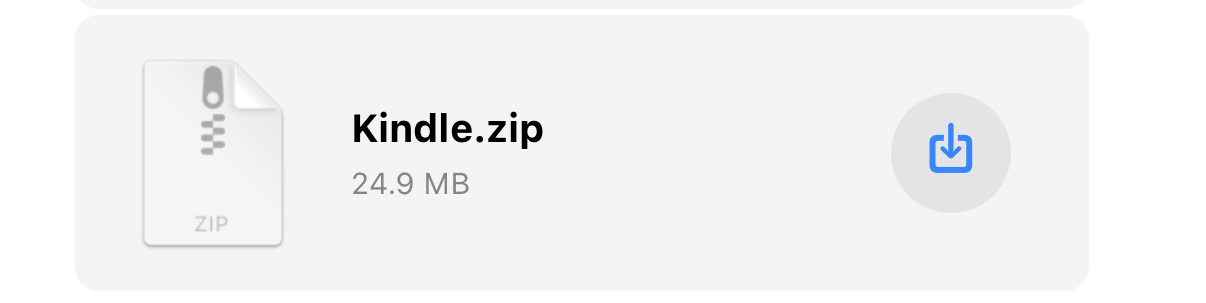
Tap the Zip File Icon

Open the email on your iPhone and tap the zip file icon.

Kindle.zip download bar
6

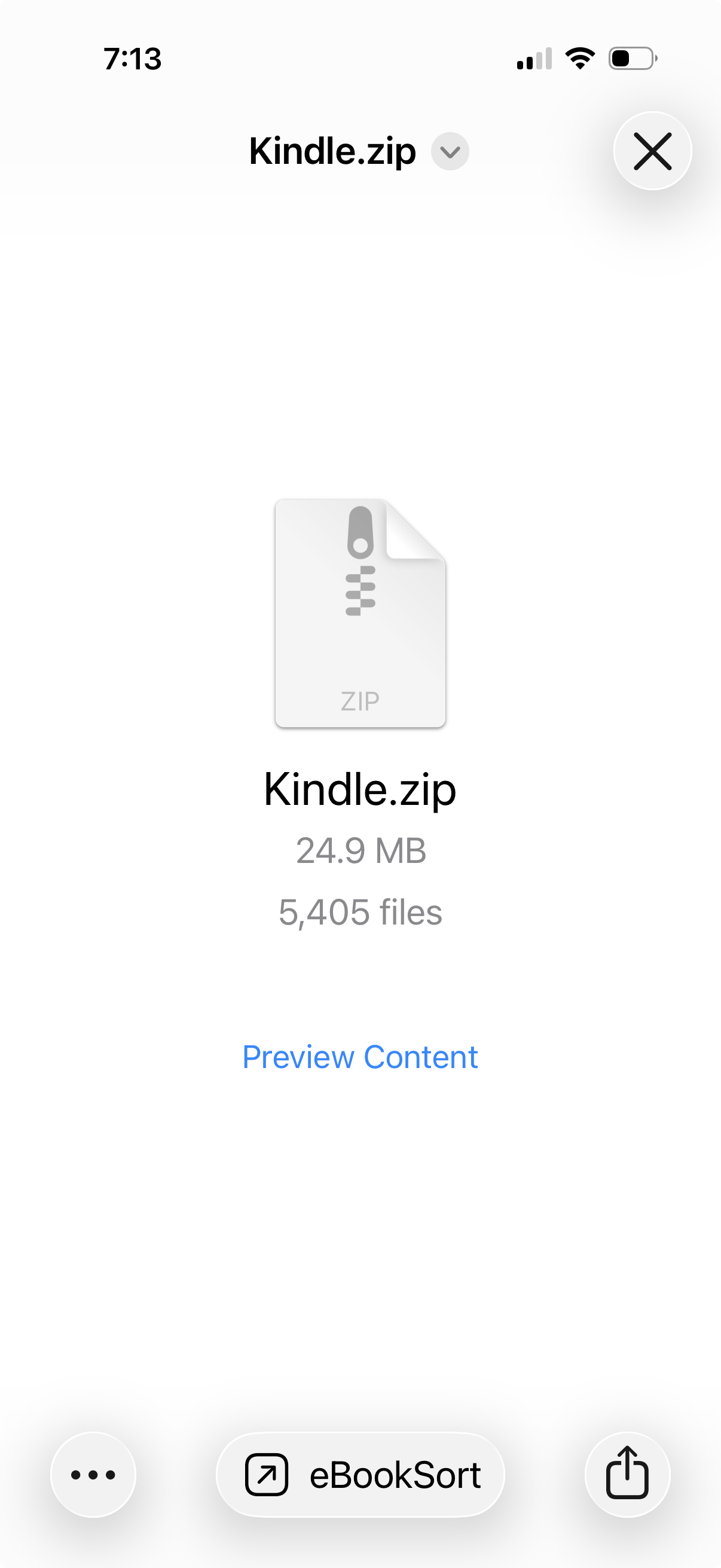
Preview Appears

A preview will appear.

Kindle.zip preview screen
7

Tap the Share Button

Tap the Share button (the square with an upward arrow) at the bottom of the screen.

Share button bar
8

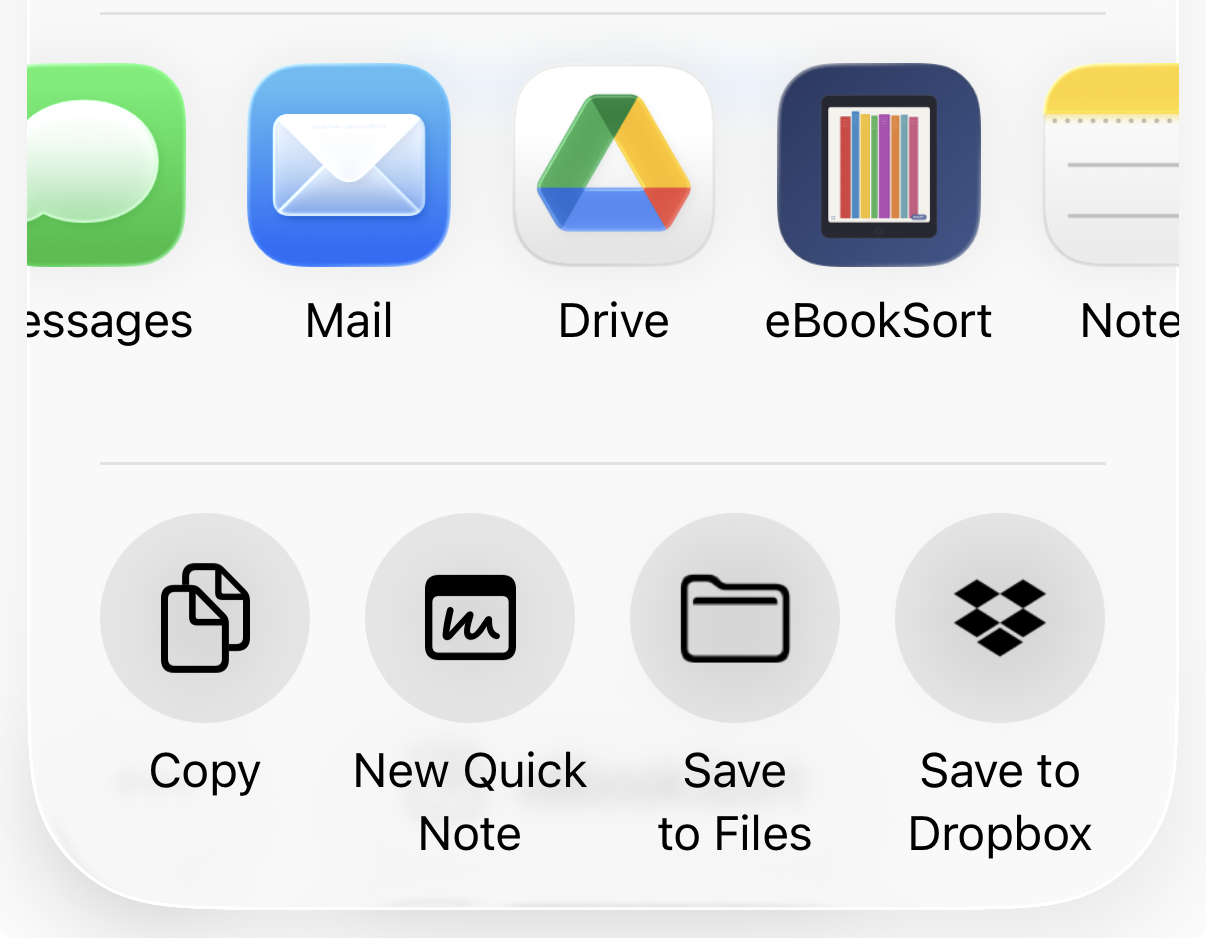
Select eBookSort

Look for eBookSort in the app list. You may need to scroll or tap More to find it.

Share sheet with eBookSort
Downloading on a computer? Save the ZIP to iCloud Drive, AirDrop it to your iPhone, or email it to yourself. Then tap Browse for Zip File inside eBookSort to select it.
This is a one-time setup. Your library is saved in the app. Repeat only if you want to pick up newer purchases.
🎧 Audible Users Import your Audible audiobook library
What you'll get: Audible doesn't include genre data in its export, so audiobooks will appear under Uncategorized. But eBookSort will track your listening stats — hours listened, favorite narrators, listening speed, completion rates, and more.
1

Sign in to Amazon

Sign in to Amazon, then go to this page:
amazon.com/hz/privacy-central/data-requests/preview.html

2

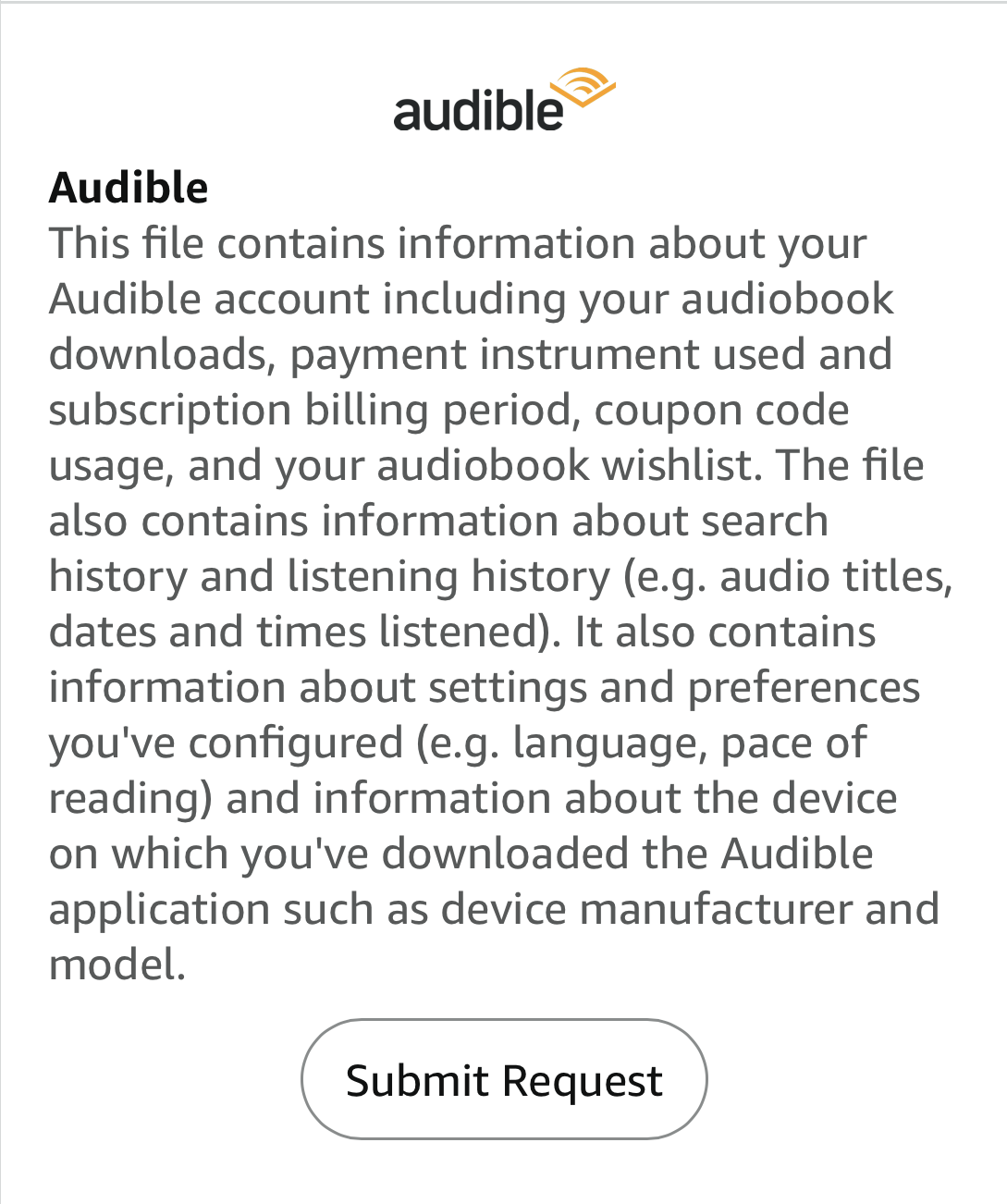
Submit Your Request

Scroll down to Audible and click Submit Request.

Audible Submit Request screenshot
3

Confirm via Email

Check your email and tap Confirm Data Request.

4

Wait for Your Data

In one or two days you will get an email with an attachment called Audible.zip. (If there's also a .csv file, you can ignore it.)

5

Tap the Zip File Icon

Open the email on your iPhone and tap the zip file icon.

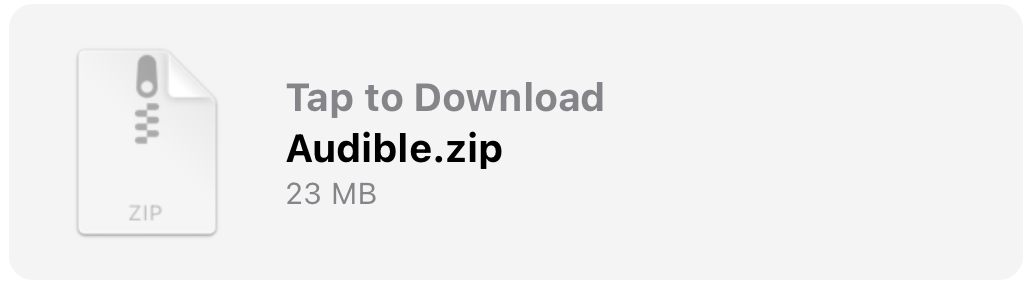
Audible.zip download bar
6

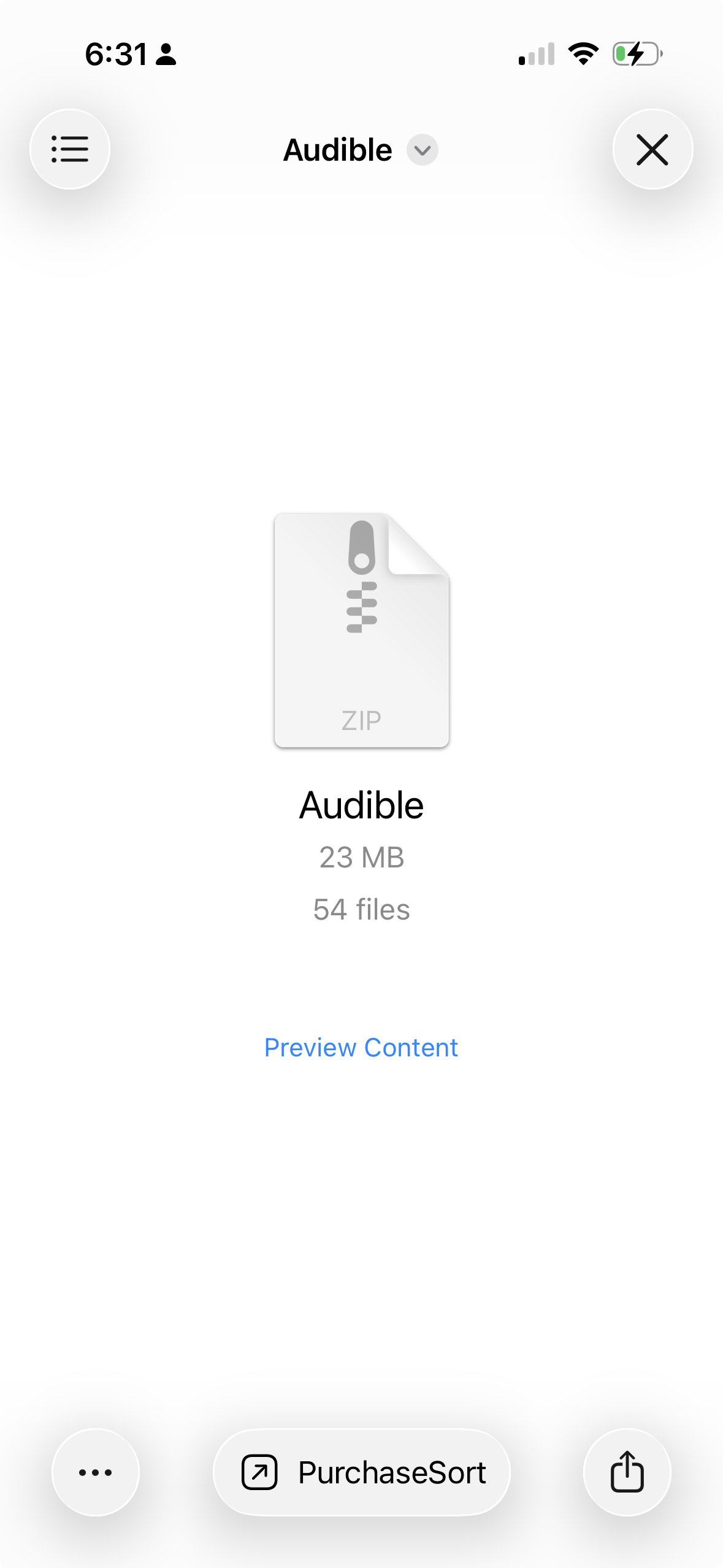
Preview Appears

A preview will appear.

Audible.zip preview screen
7

Tap the Share Button

Tap the Share button (the square with an upward arrow) at the bottom of the screen.

Share button bar
8

Select eBookSort

Look for eBookSort in the app list. You may need to scroll or tap More to find it.

Share sheet with eBookSort
Downloading on a computer? Save the ZIP to iCloud Drive, AirDrop it to your iPhone, or email it to yourself. Then tap Browse for Zip File inside eBookSort to select it.
This is a one-time setup. Your library is saved in the app. Repeat only if you want to pick up newer purchases.
📚 Apple Books Users Import your Apple Books library
1

Go to Apple's Privacy Portal

Go to Apple's privacy portal and tap Request a copy of your data:
privacy.apple.com

2

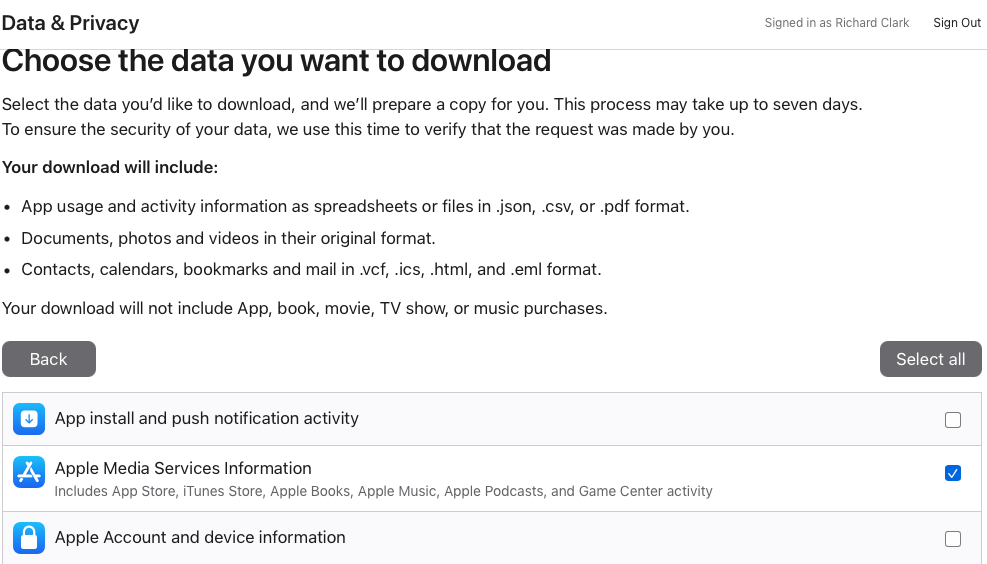
Select Apple Media Services Information

Check Apple Media Services Information — this includes Apple Books, App Store, iTunes, Apple Music, and Game Center.

Apple privacy data selection page
3

Complete Your Request

Tap Continue at the bottom of the page, then tap Complete Request.

4

Wait for the Email

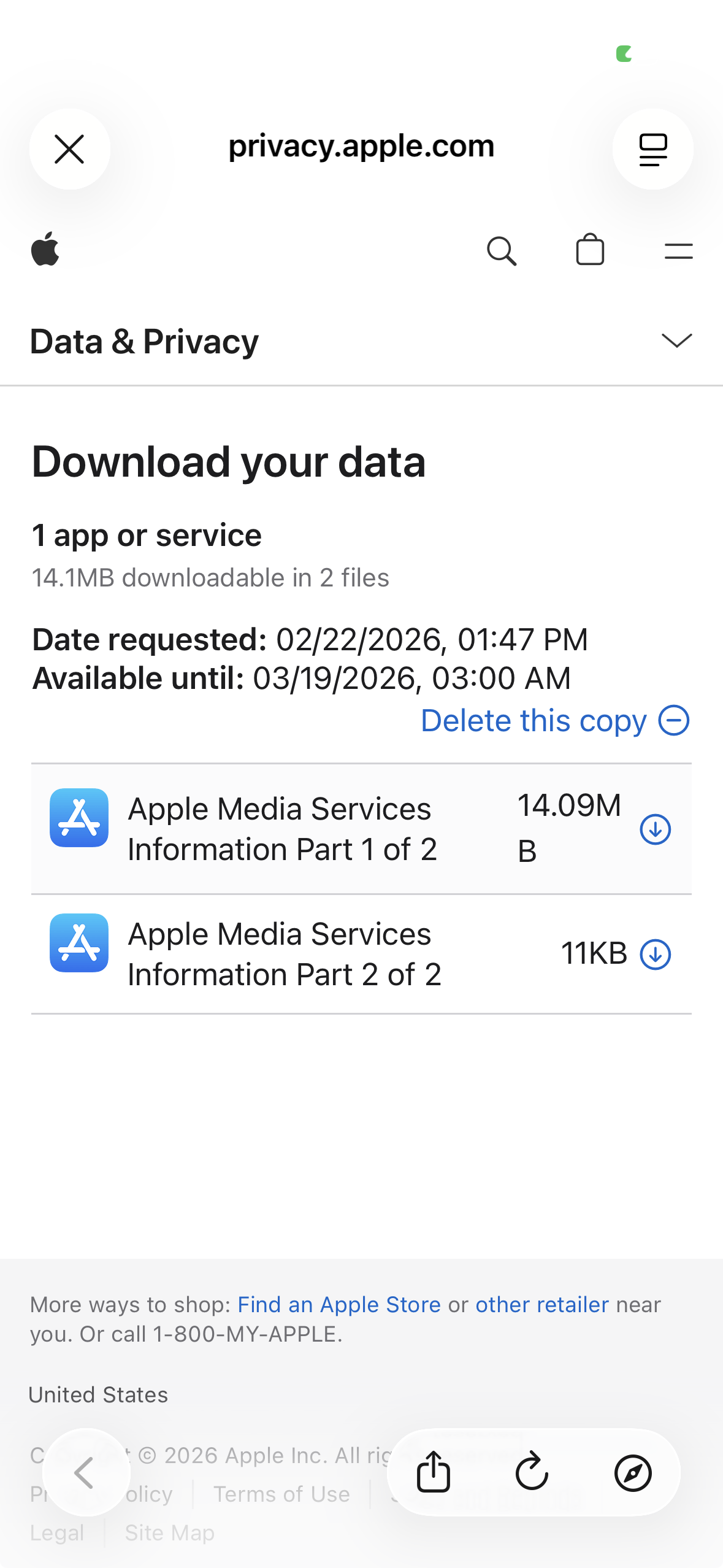
Apple will email you when your data is ready — this usually takes up to a week. On your device, tap the link in the email and it will take you to this screen:

Apple Download your data page
5

Download Each File

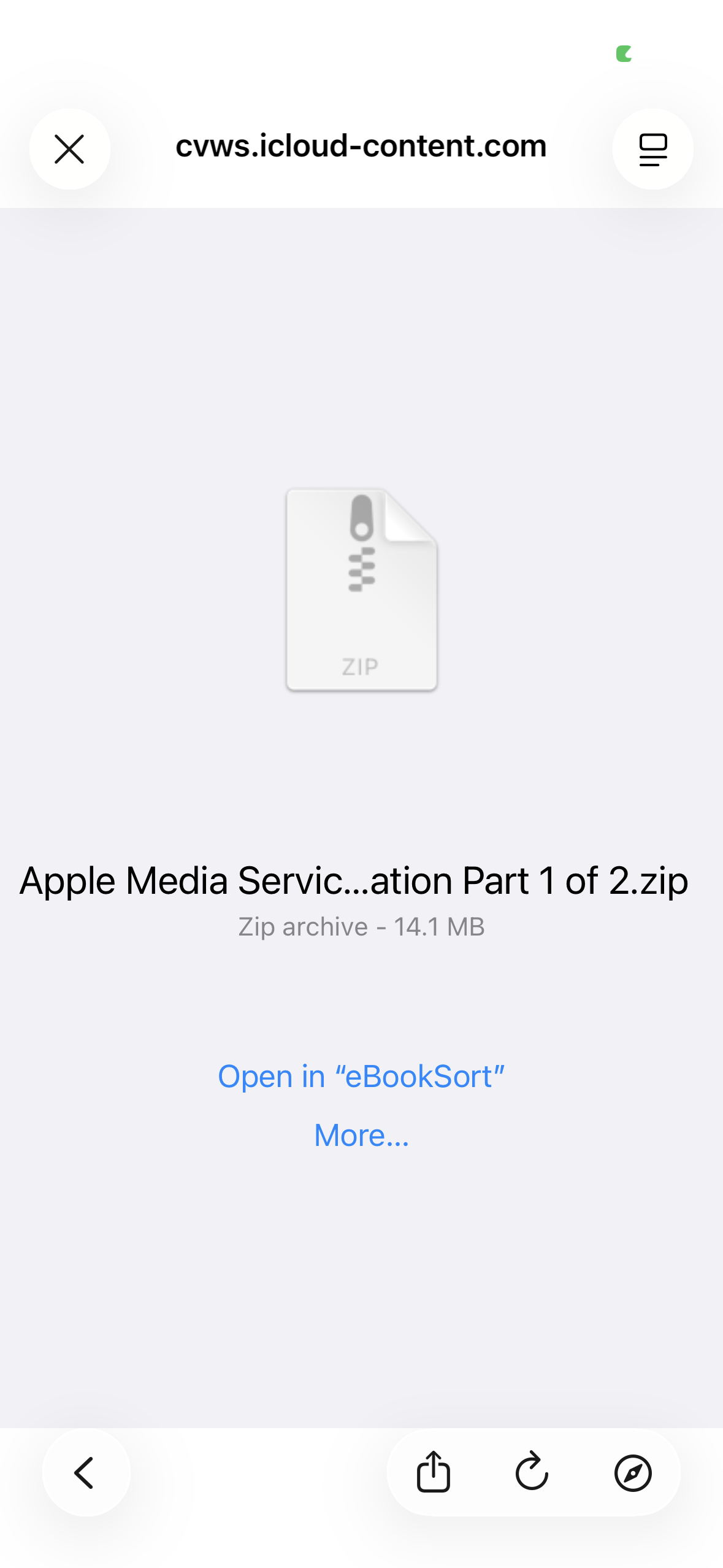
Tap the download button on each file one at a time. A window will appear — tap Open in "eBookSort". If you don't see it, tap More... to find eBookSort.

Open in eBookSort dialog
6

Repeat for Each File

Repeat Step 5 for each file listed. Not all files will contain book data — eBookSort will automatically skip anything that doesn't.

Downloading on a computer? Save the ZIP files to iCloud Drive or AirDrop them to your iPhone, then tap Browse for Zip File inside eBookSort to select them.

Your Data Stays on Your Device

eBookSort processes everything on your iPhone. Your book data is never uploaded anywhere — no accounts, no servers, no tracking. The app reads the files Amazon and Apple already gave you and organizes them. The only thing it reaches out for is cover art.

eBookSort

If you own more than 50 ebooks, you need this.

$0.99 on the App Store. Setup takes five minutes.

Download on the App Store